Posts

Configuring OSPF

Image
Routers Used : 3640 w/ NM-1FE-TX IOS : c3640-jk9s-mz.124-16a Objective In this lab, OSPF will be configured on three Cisco routers. First, configure loopback interfaces to provide stable OSPF Router IDs. Then configure the OSPF process and enable OSPF on the appropriate interfaces. After OSPF is enabled, tune the update timers and configure authentication. Scenario The backbone of International Travel Agency’s (ITA) WAN, located in Jakarta, consists of three routers connected using an Ethernet core. Configure these core routers as members of OSPF Area 0. Because the core routers are connected to the Internet, it is decided to implement security, preventing unauthorized routers from joining Area 0. Also, within the core, the network failures need to be realized quickly. Step 1 Build and configure the network according to the diagram, but do not configure OSPF yet. A switch or hub is required to connect the three routers through Ethernet. Use ping to verify the work and test connectivity...
Configuring EIGRP Summarization

Image
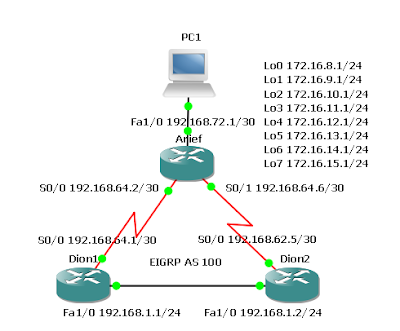
Routers Used : 3640 w/ NM-4T and NM-1FE-TX modules IOS : c3640-jk9s-mz.124-16a Objective In this lab EIGRP will be configured and the operation will be tested over discontiguous subnets by disabling automatic route summarization. Discontiguous subnets are subnets that are out of order. Finally, EIGRP will be manually configured to use specific summary routes. Scenario The International Travel Agency uses VLSM to conserve IP addresses. All LANs are addressed using contiguous subnets, but the company would like to examine the effects of discontiguous subnets using EIGRP for future reference. The existence of multiple networks is simulated by loopback interfaces on the Arief router. The WAN links are addressed using 192.168.64.0 with a 30-bit mask. Because this scheme creates discontiguous subnets, the default summarization behavior of EIGRP should result in incomplete routing tables. The problem should be resolved by disabling the default summarization in EIGRP while maintaining a route ...

Configuring EIGRP Fault Tolerance

Image
Routers Used : 3640 w/ NM-4T and NM-1FE-TX modules IOS : c3640-jk9s-mz.124-16a Objective In this lab EIGRP will be configured over a full mesh topology and then tested to observe DUAL replace a successor with a feasible successor after a link failure. Scenario The International Travel Agency wants to run EIGRP on its core, branch, and regional routers. EIGRP is to be configured and tested for its ability to install alternate routes in the event of link failure. Step 1 Build and configure the network according to the diagram, configuring EIGRP as indicated for AS 100. If using the configuration files from the previous lab, be sure to change IP addresses according to the diagram. Also, remove all loopback interfaces. Set the bandwidth for each serial interface to reflect the diagram. Use the show interface command to verify the configuration. Use ping and show ip route to verify the configuration and test connectivity between all routers. Step 2 Verify that EIGRP maintains all routes ...

Configuring EIGRP

Image
Routers Used : 3640 w/ NM-4T modules IOS : c3640-jk9s-mz.124-16a Objective In this lab EIGRP will be configured on three Cisco routers within the International Travel Agency WAN and the basic behaviors of the protocol will be observed. Scenario The International Travel Agency is implementing EIGRP. EIGRP must be configured at all three locations before the Dion1 headquarters can connect to the Dion2 headquarters. Step 1 Build and configure the network according to the diagram, but do not configure EIGRP yet . Use ping to test connectivity between serial interfaces. Dion1 and Dion2 will not be able to ping each other until EIGRP is enabled. Step 2 Configure EIGRP for AS 100 on all routers as the following shows: Dion1(config)#router eigrp 100 Dion1(config-router)#network 192.168.100.0 Dion1(config-router)#network 172.16.0.0 Arief(config)#router eigrp 100 Arief(config-router)#network 172.16.0.0 Dion2(config)#router eigrp 100 Dion2(config-router)#network 192.168.200.0 Dion2(config-router...

Online CCNA Lab

Image
The Cisco CCNA network associate certification validates the ability to install, configure, operate, and troubleshoot medium-size routed and switched networks, including implementation and verification of connections to remote sites in a WAN. This new curriculum includes basic mitigation of security threats, introduction to wireless networking concepts and terminology, and performance-based skills. This new curriculum also includes (but is not limited to) the use of these protocols: IP, Enhanced Interior Gateway Routing Protocol (EIGRP), Serial Line Interface Protocol Frame Relay, Routing Information Protocol Version 2 (RIPv2),VLANs, Ethernet, access control lists (ACLs). 1 Console Login 2 Router Configuration 3 Examine the Router 4 Copy to a TFTP server 5 Copy from TFTP server 6a Clear the backup config 6b Saving the backup configuration 7 Copy to NVRAM 8 Initial router configuration 9 Initial Switch Configuration 10 RIP routing 11 IGRP routing 12 Create Accesslist 13 IPX Access List ...

Connecting to Cisco Router console port using Linux

Image
I tried to connect my Ubuntu laptop to Cisco Router console port. I did successfully. What you will need: A roll-over cable (Cisco Console Cable). These are usually RJ-45 on the router side and serial on the PC side. If your laptop doesn’t have a serial port (like mine) you can get a 9-pin D-sub serial to USB cable. I got the BAFO USB Serial to DB9. I bought it in Ambassador Mall Kuningan Jakarta last night. Get Connected: Connect all the cables: USB -> Serial -> Crossover –> Console Port Download and Install Putty . root@dion-laptop:~# apt-get install putty Make sure that the USB to serial cable is recognized. root@dion-laptop:~# dmesg | grep tty [ 0.004000] console [tty0] enabled [ 1.923508] tty ptyx4: hash matches [ 131.637904] usb 3-2: pl2303 converter now attached to ttyUSB0 [ 173.768300] type=1503 audit(1243914954.561:5): operation="inode_permission" requested_mask="w::" denied_mask="w::" fsuid=0 name="/dev/ttyUSB0" pid=...

Using your Real PC in GNS3

Image
One of the interesting things about GNS3 and Dynamips is that you can connect your topology to the real world. For some of your CCNA and CCNP studies you may need to run an actual Web browser or Cisco’s Security Device Manager (SDM) among others. Just connect your topology to your real PC. You could even connect to virtual machines running on your computer inside VMware or Virtual PC. I’ve even set up two copies of Windows XP Professional running inside VMware virtual machines. Then I ran Cisco soft IP Phones that could talk to themselves. You could connect your virtual network to a real network as well. Connecting a virtual topology running within GNS3 and Dynamips to real devices is very exciting, but again, your throughput is going to be limited compared to using real equipment for the entire topology. It only makes sense to use GNS3 and Dynamips in a lab environment and for learning purposes. Any other usage is highly discouraged! Connecting your topology to your real PC is very si...